Posts

Difference between AWS CloudWatch and CloudTrail

Image
CloudWatch  focuses on the activity of AWS services and resources, reporting on their health and performance. CloudTrail  is a log of all actions that have taken place inside your AWS environment. AWS CloudWatch AWS CloudWatch is a monitoring service for AWS cloud resources and the applications you run on AWS. You can use Amazon CloudWatch to collect and track metrics, collect and monitor log files, set alarms, and automatically react to changes in your AWS resources. AWS CloudTrail AWS CloudTrail is a service that enables governance, compliance, operational auditing, and risk auditing of your AWS account. With CloudTrail, you can log, continuously monitor, and retain account activity related to actions across your AWS infrastructure. CloudTrail provides event history of your AWS account activity, including actions taken through the AWS Management Console, AWS SDKs, command-line tools, and other AWS services. This event history simplifies security analysis, resource change tra...

Amazon Inspector

Image
An important component within the security management of organizations is the Technical Vulnerability Management part that involves carrying out a continuous process of reviewing the exposure and vulnerability status of your applications and all their associated components. Aligned with the Well-Architected Framework, precisely in the workload protection component, you have item SEC06-BP01: Perform Vulnerability Management, which recommends that you should “Frequently scan and patch for vulnerabilities in your  code, dependencies, and in your infrastructure to help protect against new threats.” In this sense, AWS offers the ability to address this important issue through Amazon Inspector. In Figure 1, you can see the general view. You just need to enable the service and it will automatically start the discovery process for EC2 instances, Container repositories, Container images, and Lambda functions. Figure 1- Amazon Inspector dashboard Amazon Inspector is an automated vulnerabilit...

Unifying AWS and Azure Security Operations with Microsoft Sentinel

Image
The Multi-Cloud Reality Most modern enterprises operate in multi-cloud environments using Azure for core workloads and AWS for development, storage, or DevOps automation. While this approach increases agility, it also expands the attack surface. Each platform generates its own telemetry: Azure: Activity Logs, Defender for Cloud, Entra ID sign-ins, Sentinel analytics AWS: CloudTrail, GuardDuty, Config, and CloudWatch Without a unified view, security teams struggle to detect cross-cloud threats promptly. That’s where Microsoft Sentinel comes in, bridging Azure and AWS into a single, intelligent Security Operations Center (SOC).   Architecture Overview   Connect AWS Logs to Sentinel AWS CloudTrail via S3 Connector Enable the AWS CloudTrail connector in Sentinel. Provide your S3 bucket and IAM role ARN with read access. Sentinel will automatically normalize logs into the AWSCloudTrail table. AWS GuardDuty Connector Use the AWS GuardDuty API integration for threat detection telemet...

VMware Horizon on Microsoft Azure

Image
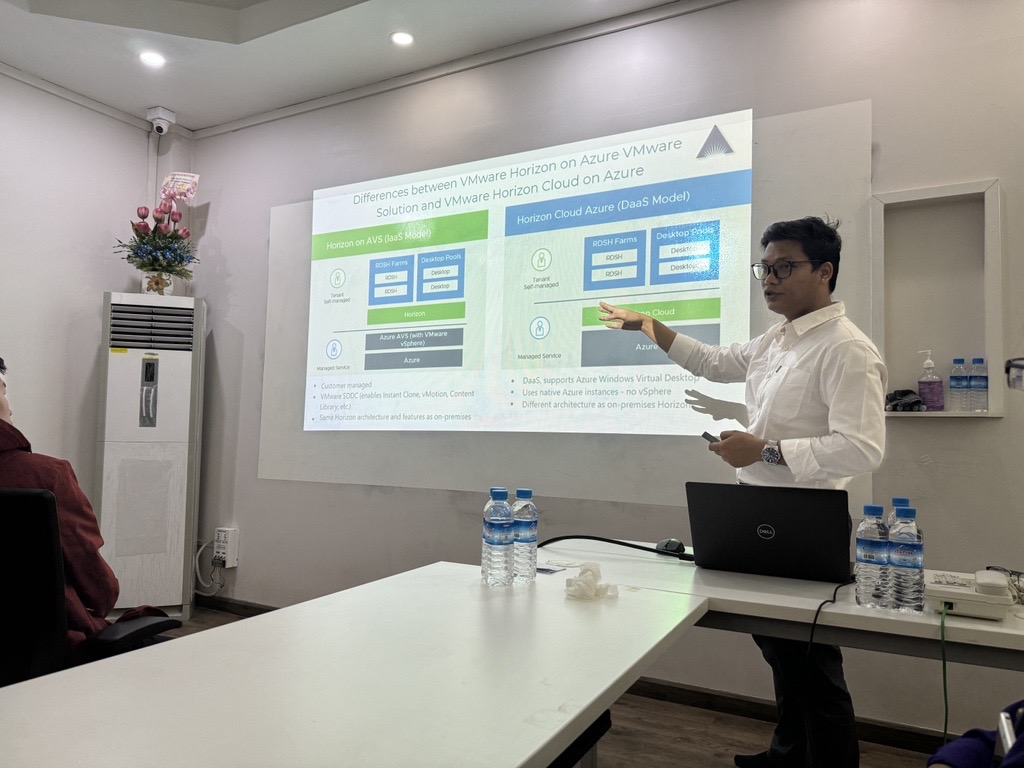
 VMware Horizon on Microsoft Azure is a cloud-based virtual desktop infrastructure (VDI) solution that enables organizations to deploy, manage, and scale virtual desktops and applications on Microsoft Azure. It combines VMware's industry-leading Horizon platform with the flexibility, scalability, and global reach of Azure. This solution allows businesses to securely deliver virtual desktops and applications to users from Azure regions worldwide, reducing the need for on-premises infrastructure. With features like cloud bursting, hybrid deployments, and integration with VMware Cloud Universal, it provides a seamless experience for end users while simplifying IT management. Key benefits include: Scalability : Quickly expand or reduce desktop capacity based on business needs. Security : Leverages Azure security features and VMware’s built-in policies. Flexibility : Supports hybrid and multi-cloud deployments. Cost Optimization : Pay-as-you-go pricing and efficient resource util...

Custom images

Image
 You can use custom images (also referred to as a golden image) if desired. To do so, you need to pre- load your images via Azure as a Managed Image or the Shared Image Gallery. To learn more about creating custom images with Windows 365, see https://learn.microsoft.com/en-us/windows-365/ enterprise/add-device-images. To get the benefits, like simple and unified management options of modern management, we strongly recommend using the gallery images included in Windows 365 and using Intune to install applications. While in VDI, you may have updated your image on a weekly basis, using a gallery image eliminates the challenge of repeatedly updating your custom image whenever a single component changes. All images will be updated monthly by Microsoft at patch Tuesday. We recommend customers use Win- dows Autopatch to simplify Windows Updates in conjunction with Windows 365. Figure : Selecting Windows 365 images Thant Zin Phyo@Cracky (MCT, MCE, MVP)

The transition to modern management with Microsoft Intune

Image
 Microsoft Intune is an integrated solution that simplifies management across multiple OSs, cloud, on-premises, mobile, desktop, and virtualized endpoints including Cloud PCs, and it lowers the Total Cost of Ownership (TCO). It empowers organizations to provide data protection and endpoint com- pliance that supports a Zero-Trust security model. This unified management tool brings together device visibility, endpoint security, and data-driven insights to increase IT efficiency and improve user experiences in any work environment. Figure : The path to modern IT Thant Zin Phyo@Cracky (MCT, MCE, MVP)

Microsoft Intune device restrictions for Windows

Image
 In this article, we will see how to create enrollment restrictions for Windows devices: 1.  Sign in to the Microsoft Intune admin center (intune.microsoft.com).  2.  Select Devices | Enrollment device platform restrictions: Figure : Admin center – Enrollment device platform restrictions 3.  Create a restriction. Enter Device type restriction – HR as the name: Figure : Admin center – enrollment restrictions 4.  Select the block and allow both for MDM and personally owned devices to allow or block Windows enrollment. If you are allowing Windows (MDM) platform enrollment, you can block personal devices; see the following section to understand what blocking personal Windows devices means. Allow min/max range for the OS version only blocks devices on enrollment and has no effect on devices already enrolled into Microsoft Intune; enrollment restriction is only validated on enrollment. Figure : Command Prompt – ver 5. For the Assignments step, select HR Departmen...

Name resolution scenarios and options

Image
Name resolution scenarios and options DNS servers host records that translate human-readable domain names into machine-readable IP addresses (used by computers to communicate with each other). For example, Figure shows the DNS server for the azurecourses.xyz domain zone, which has a single A record that translates the www.azurecourses.xyz hostname into the IP address 1.2.3.4. Clients that want to communicate with the web server called www.azurecourses.xyz can make a DNS request to their DNS resolver to translate the name into an IP address. The DNS resolver will then go through an iterative process to make a record request to the DNS server. Figure – DNS server and name resolution To facilitate network communications, there are two name resolution scenarios that we will cover: Internal name resolution: Providing name resolution for private/internal clients hosted in our virtual networks External name resolution: Providing name resolution for public/internet clients that need to access ...